Sprite Grid
A downloadable tool for Windows
SpriteGrid turns your artwork into clean, game-ready pixel art sprites.
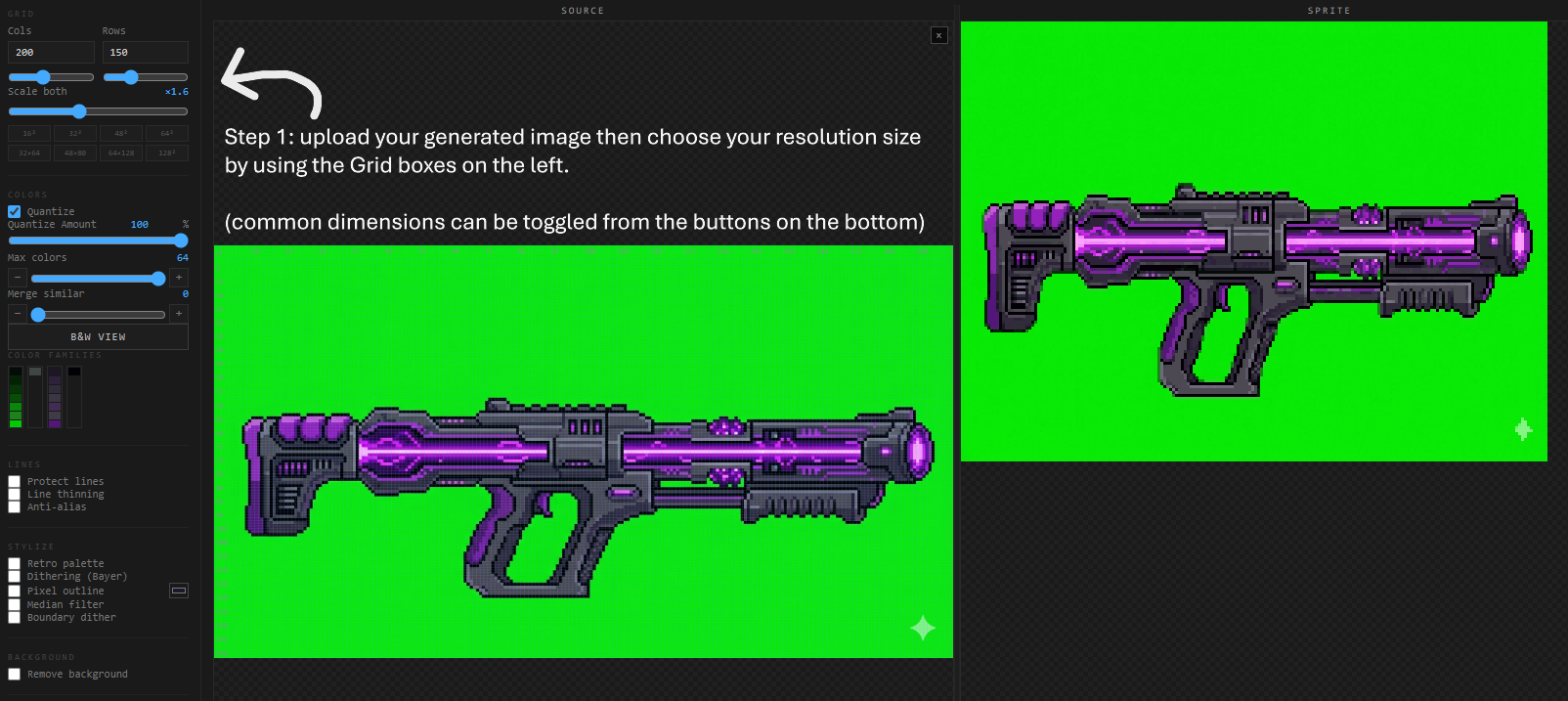
Drop in any prepped image : characters, items, enemies. SpriteGrid reduces the colors to a crisp indexed palette, removes the background, and gives you a full pixel editor to clean up the result. Export a transparent PNG at any scale, ready to drop straight into your engine.
For best results, use an input image with a solid, high-contrast background color — such as chroma green — so the background removal can cleanly separate it from your sprite.
- Where SpriteGrid Fits
SpriteGrid is the final stage of a simple three-step workflow:- Any image — Start with whatever source art you have.
- Stylized into pixel art on a high-contrast background — Run it through a stylization pass that converts it to a pixel art look and places it on a flat, high-contrast background color.
- SpriteGrid for clean-up — Bring the result here to strip the background, refine the palette, fix stray pixels, and export a clean, transparent, game-ready PNG.
-------------------------------------------------------------------------------------------------
Example
Example: Street Photo → Game-Ready Sprite- Start with any image. Here it's a quick photo snapped on the street — a guy riding past on a bike. (blurred for privacy)

- Run it through a stylization pass.
(For this example I used an AI to prepare the image in the pixel art style that I like. But you can use whatever you like.)
A simple prompt converts the photo into a 2D pixel-art rendering on a bright green background — same subject, same pose, now in a flat pixel style on a high-contrast chroma backdrop.
Not bad, but AI-generated "pixel art" mimics the look of pixel art with soft, anti-aliased edges and a sprawling, inconsistent color palette — but it isn't actually built on the clean, indexed grid a game engine needs to use it as a sprite.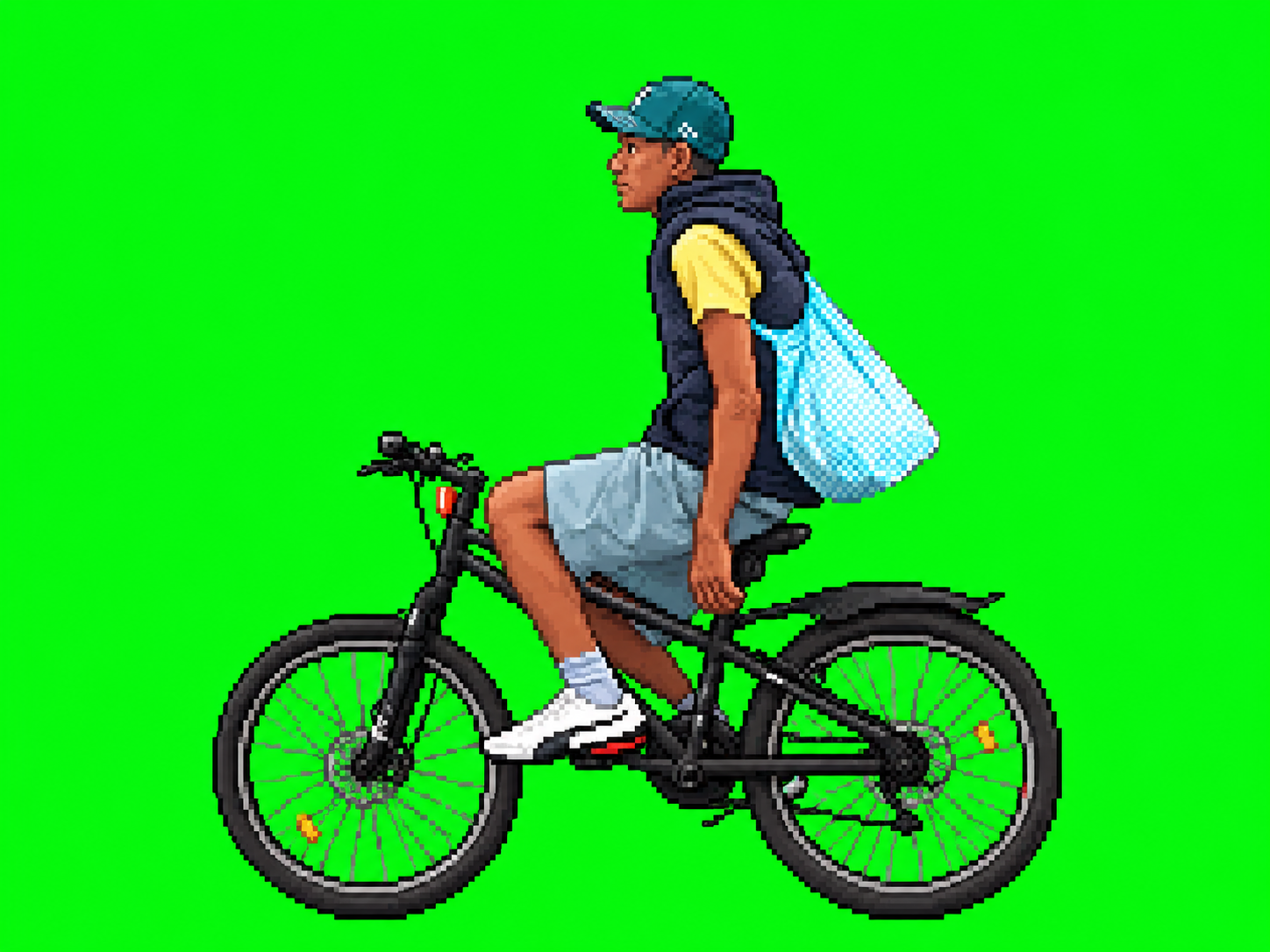
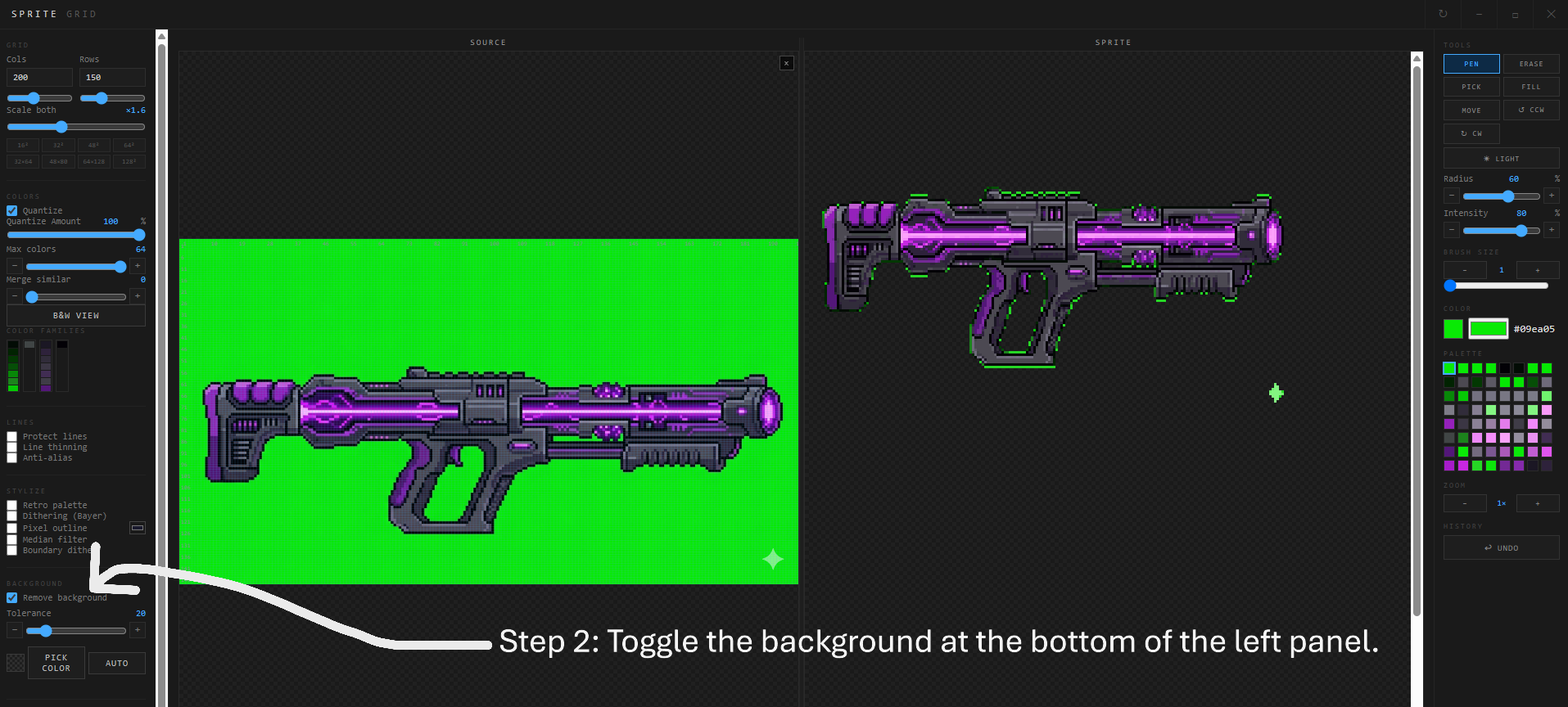
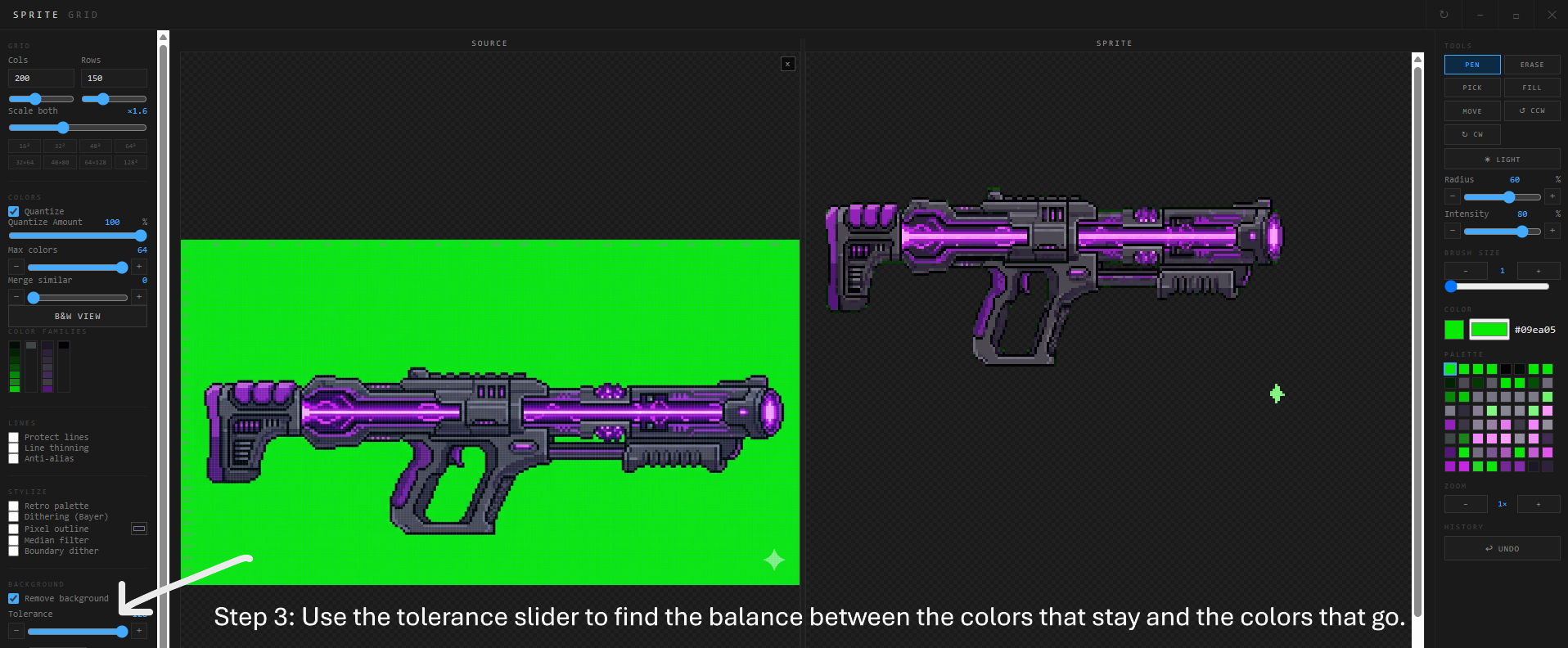
- Bring it into SpriteGrid to finish the job. Drop the stylized image in, turn on Remove Background — the corners get sampled and the green disappears automatically — dial in your grid size and color count, and you're left with a clean, transparent, game-ready sprite.
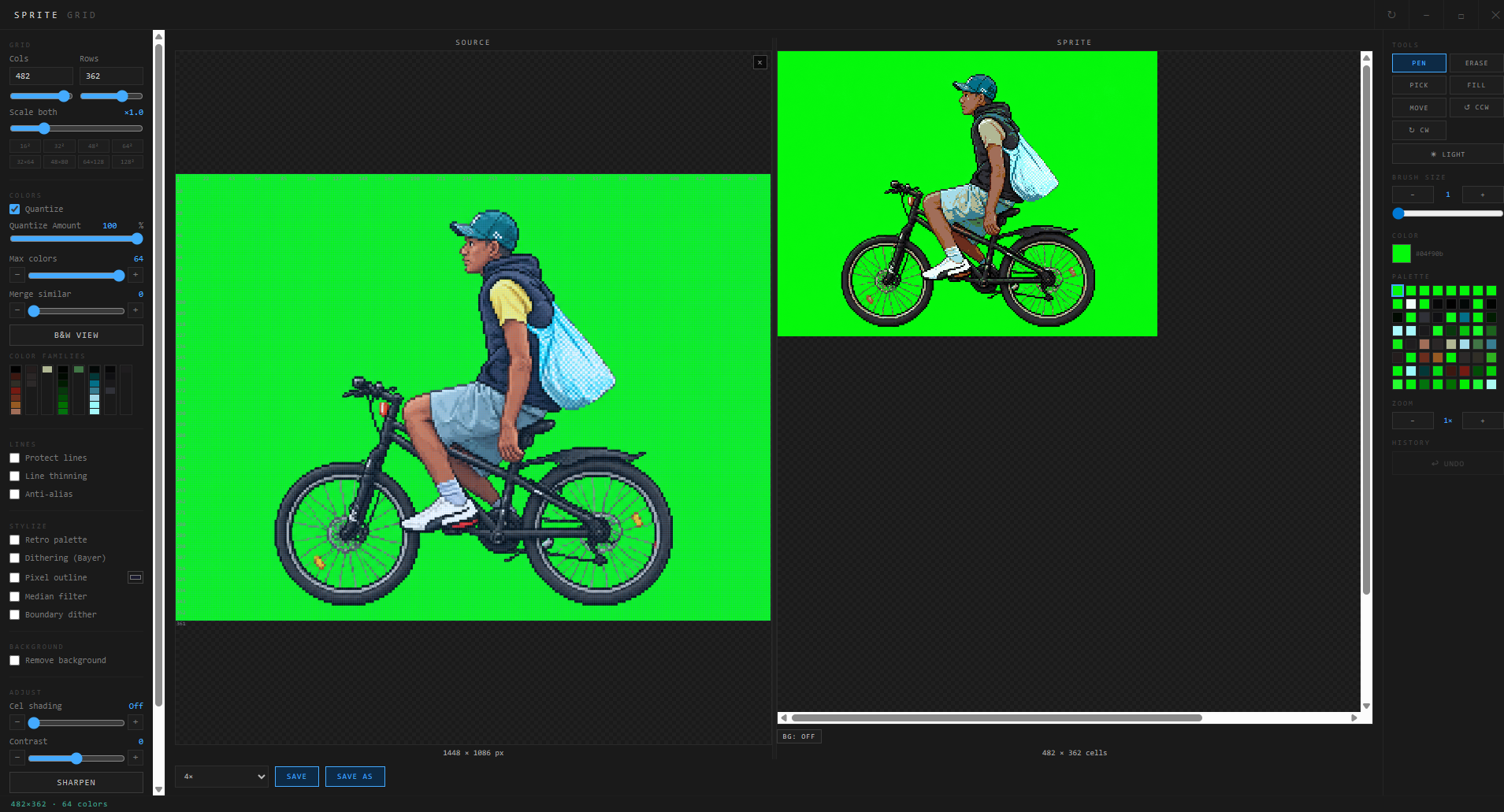
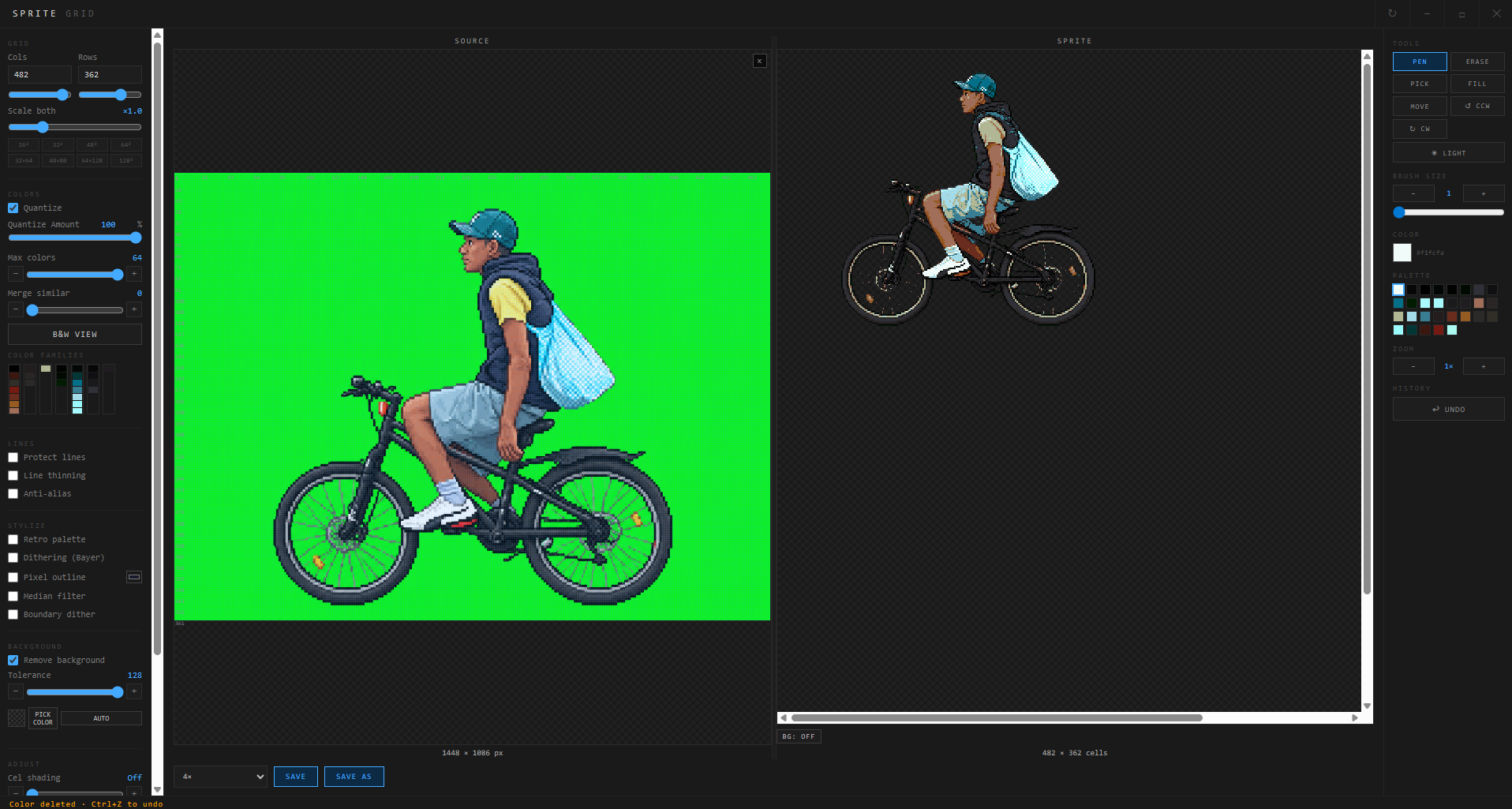
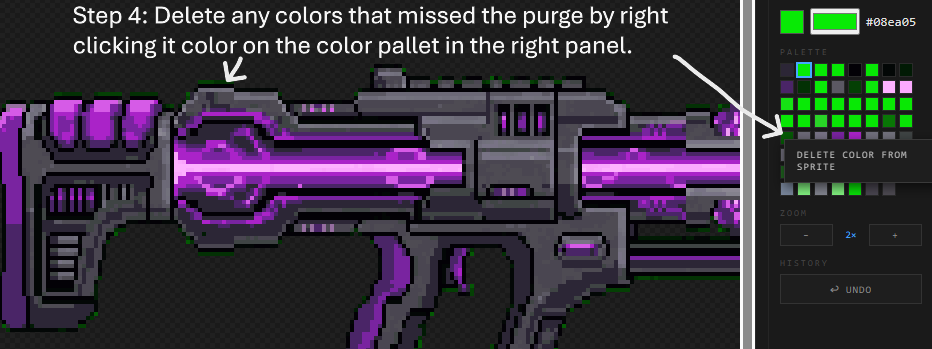
4. Touch up and Export.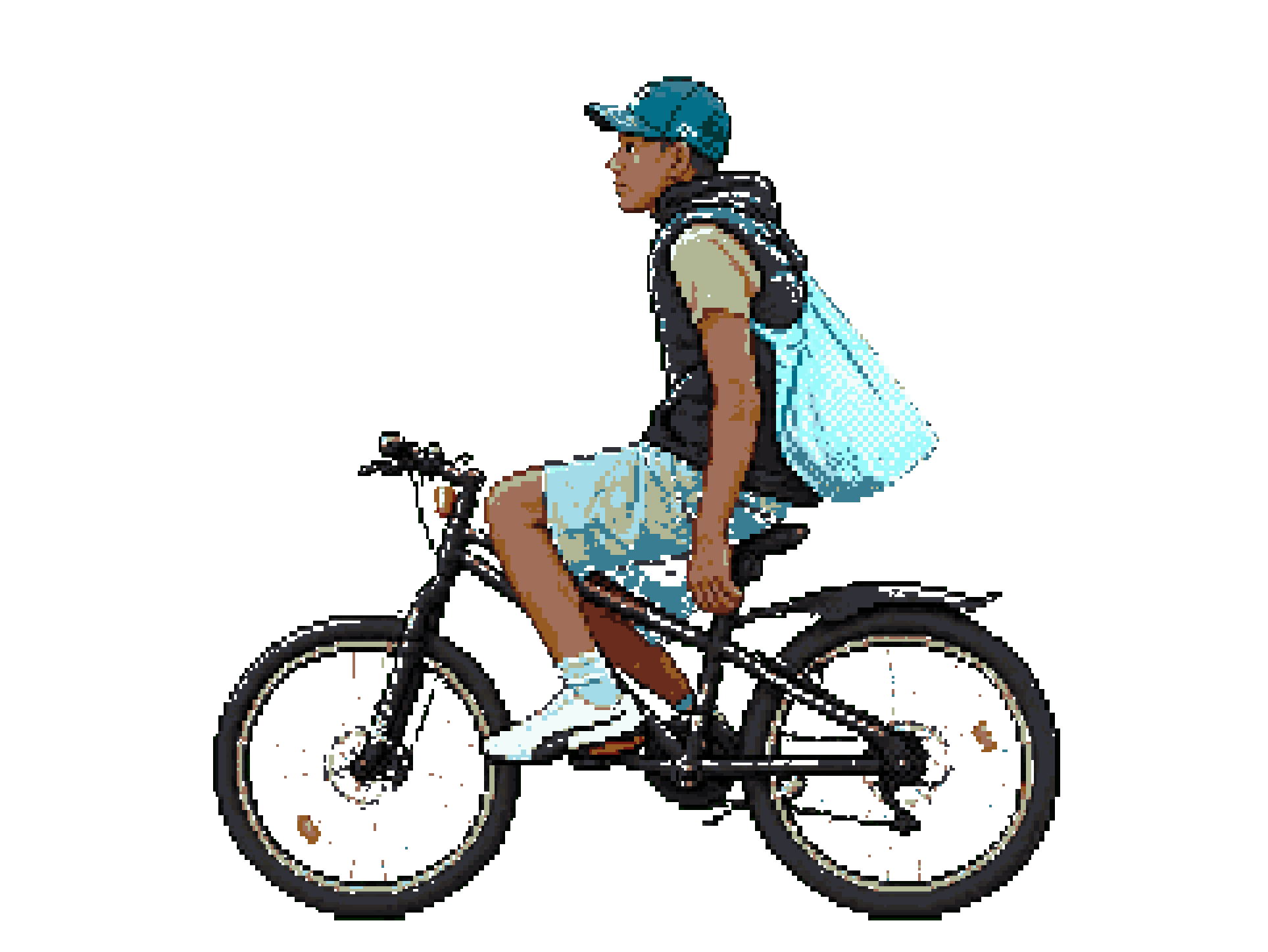
Now, I didn't touch up this one (as you can see by the holes in the png), but you could yours using the editing tool on the right side.
---------------------------------------------------------------------------------------------
That's the whole loop: any photo or image → a quick stylization pass → SpriteGrid does the clean-up and export.
The whole process took less than a minute. (If you don't count finding the subject to take a picture of.)
-----------------------------------------------------------------------------------------
Features- Color palette reduction with optional Bayer dithering
- Smart background removal — automatic corner detection + manual color picks
- Full pixel editor — pen, erase, fill, rotate, stretch, undo
- Cel shading, outlines, anti-aliasing, and line thinning
- Retro palette lock — GameBoy, NES, PICO-8, C64, CGA
- Export at 1×, 2×, 4×, 8×, 16×
- Windows desktop app — offline, no subscription
------------------------------------------------------------------------------------------
- Best Practice
SpriteGrid's entire pipeline is built around quantization — every other tool (dithering, shading, background removal, filters) operates on the palette that quantization produces. Getting clean results starts with feeding it the right kind of input.
- Use a solid, high-contrast background color. Background removal samples the corners of your image to detect what to erase. A flat, saturated color clearly different from your subject gives the cleanest cut.
- Start with a clear, well-lit source image. Quantization groups similar colors into buckets and averages them. Busy or low-contrast art produces muddier palettes — clean source art gives you a sharper result.
- Match your grid size to your target resolution. The sampling step downscales your source image to the grid dimensions you set. Pick a size close to the sprite resolution you actually want.
- Set max colors to match your style. Lower counts (4–16) read as retro and stylized. Higher counts (32–64+) keep more detail but feel less like pixel art. Start low and raise it until it looks right.
- Use Quantize Amount to blend, not just toggle. The slider lets you mix between the raw source and the quantized palette instead of jumping straight to the full effect.
- Run Merge Similar on busy images. Complex source art often produces near-duplicate palette entries — Merge Similar collapses them into clean, single tones.
SpriteGrid itself contains no AI — every step is a deterministic, offline process. The example image above was prepared using an AI tool because that's what I had on hand; you're free to use any stylization method you like — hand-drawn, a different tool, whatever gets you to "pixel art on a high-contrast background."
Download
Click download now to get access to the following files: